Agreement Service
 Agreement Service allows new users to sign up for a tenant, select an edition, complete payment if required, and upload a signed agreement to access the OneSense platform.
This process includes edition selection, tenant signup, email verification, and agreement generation and upload.

On the login page, click on "New Tenant (Classic)" to begin the tenant creation process.
You will be navigated to the edition list page.
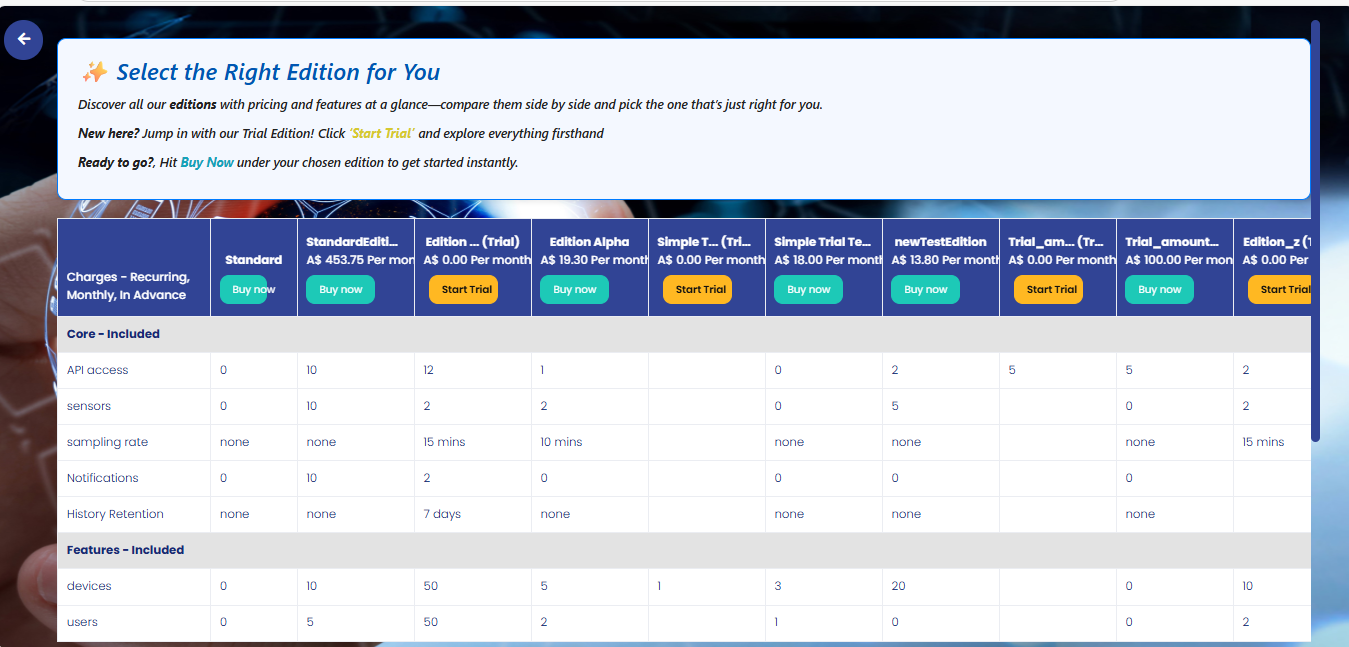
The editions page displays all available editions with their details and pricing.
You can select either "Start Trial" for trial editions or "Buy Now" for paid editions.
Both options will navigate you to the tenant signup page.

Fill in the tenant signup details:
After filling all details, click the "Submit" button.
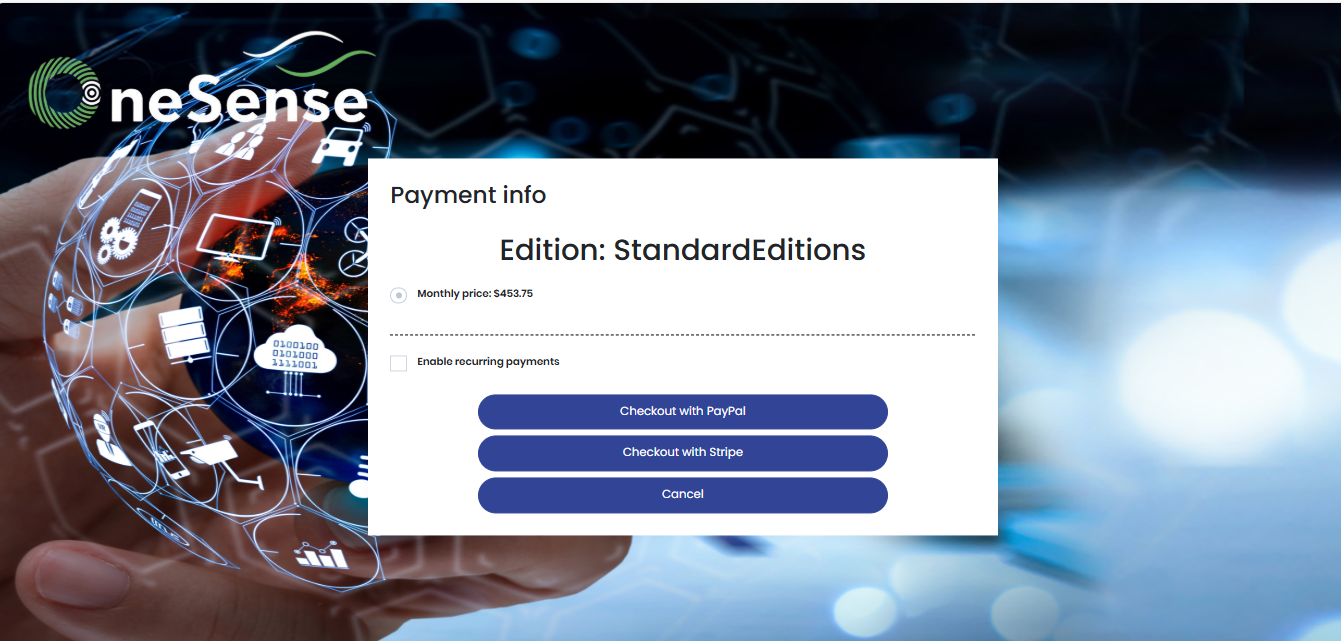
If you selected an edition without trial (Buy Now), you will be directed to payment options page.
You can choose either PayPal or Stripe as your payment method as shown in the first and second images below respectively.

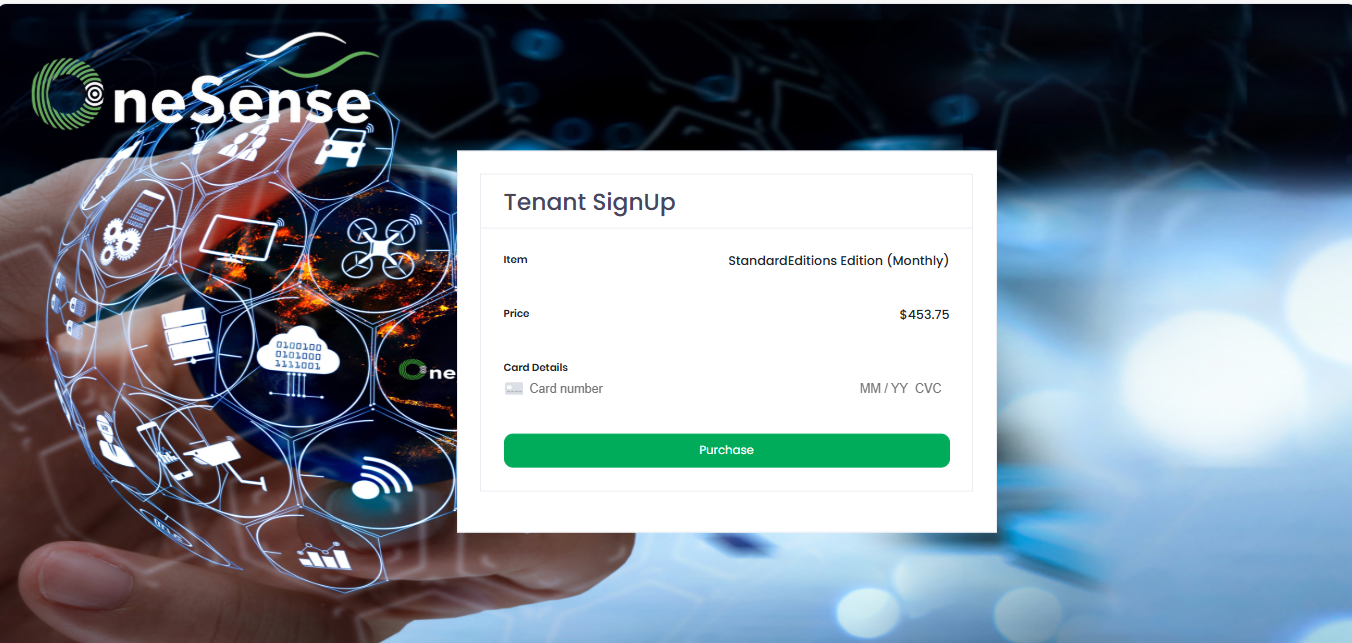
Complete the payment using your selected payment method.
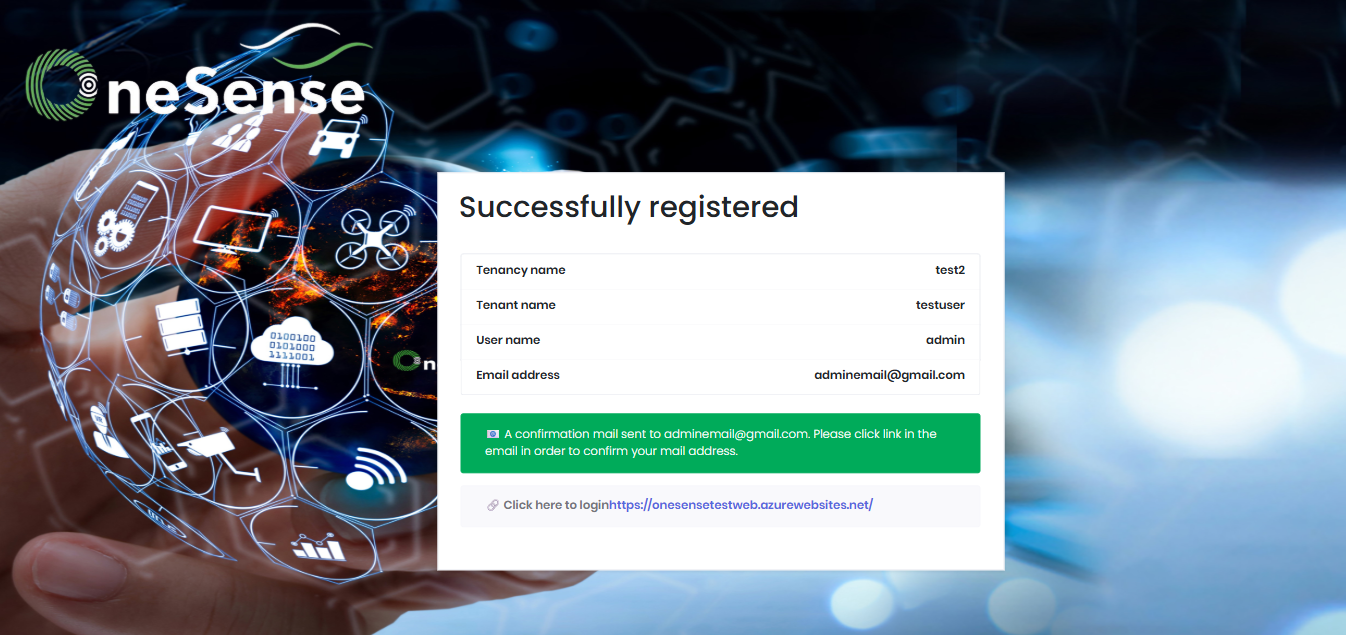
If you selected a trial edition, you will see this page with a link to login without payment.
After successful payment (for paid editions) or trial selection, you will see the registration success page with a login link.
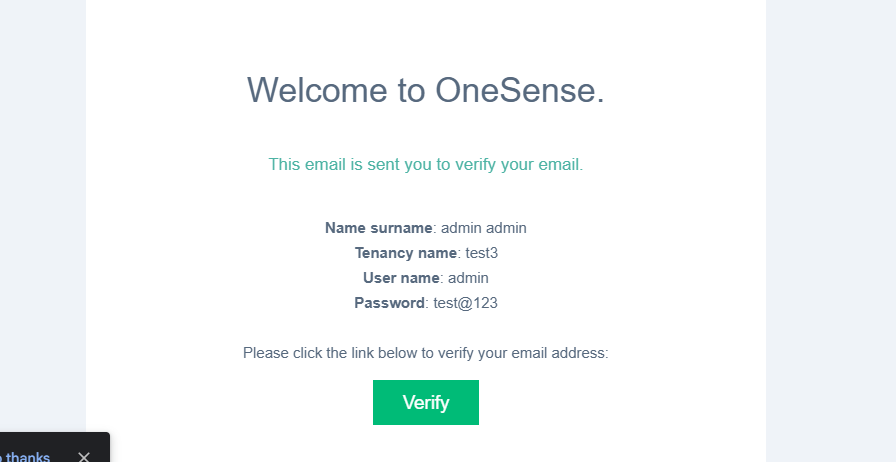
You will receive a verification email containing your tenant name, username, and password.
Click the "Verify" button in the email to verify your email address.
You will be redirected to the login page.
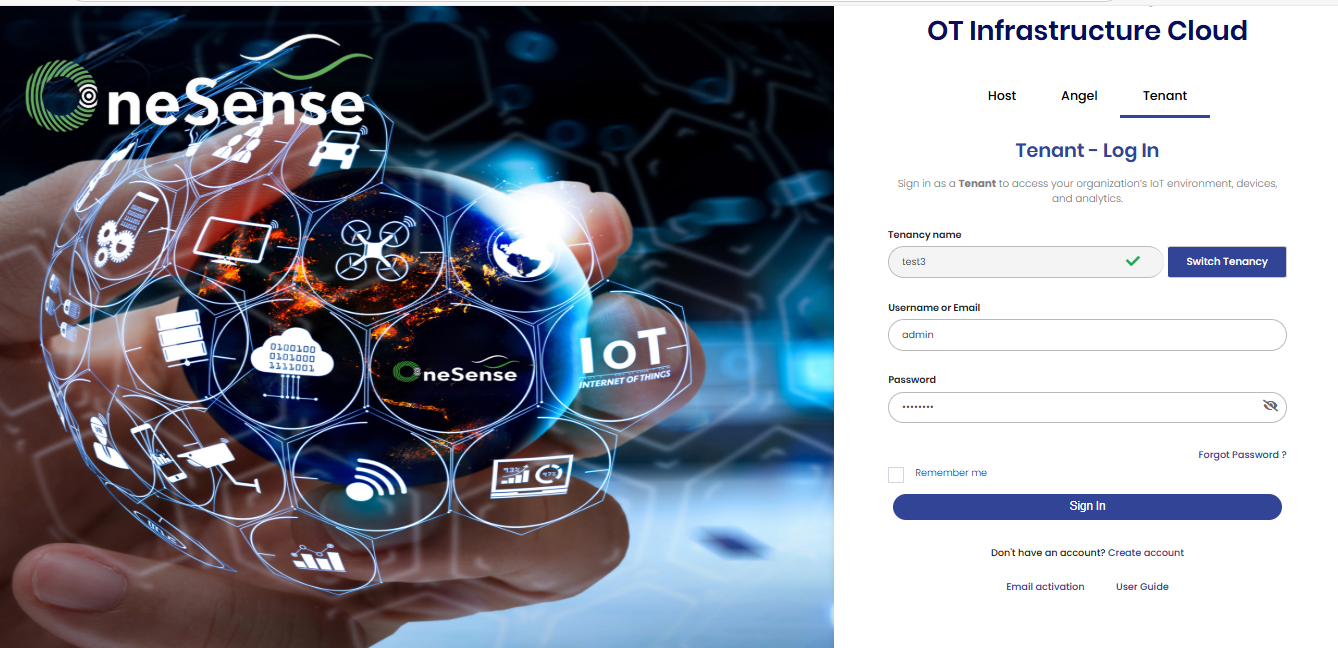
Enter the credentials you received in the welcome email.
Click on "Verify Tenancy" after entering Tenancy name. Otherwise entering credentials is not possible.
Click "Sign In" to login.
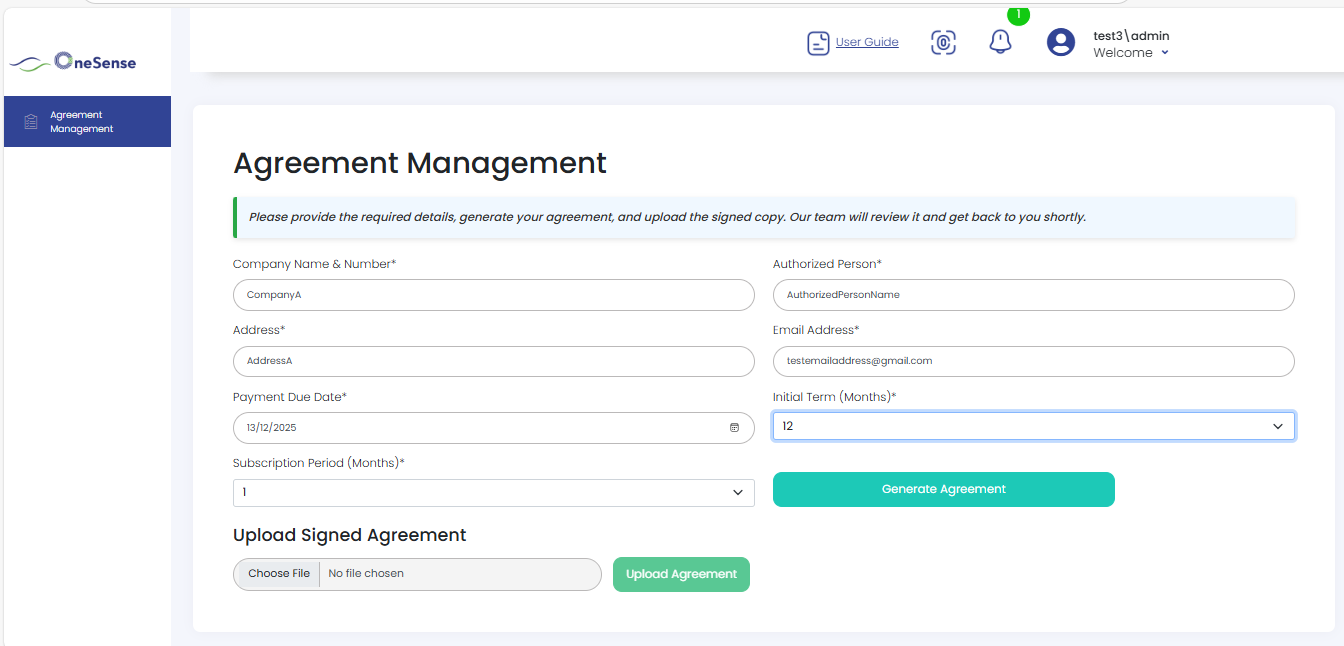
After logging in, you will see the Agreement Management page.
Enter the required agreement details including company name, address, authorized person, email, payment due date, initial term, and subscription period.
Click "Generate Agreement" button.
You will receive an email containing the agreement file with your details and edition information.
Download the agreement, sign it, and save as PDF.
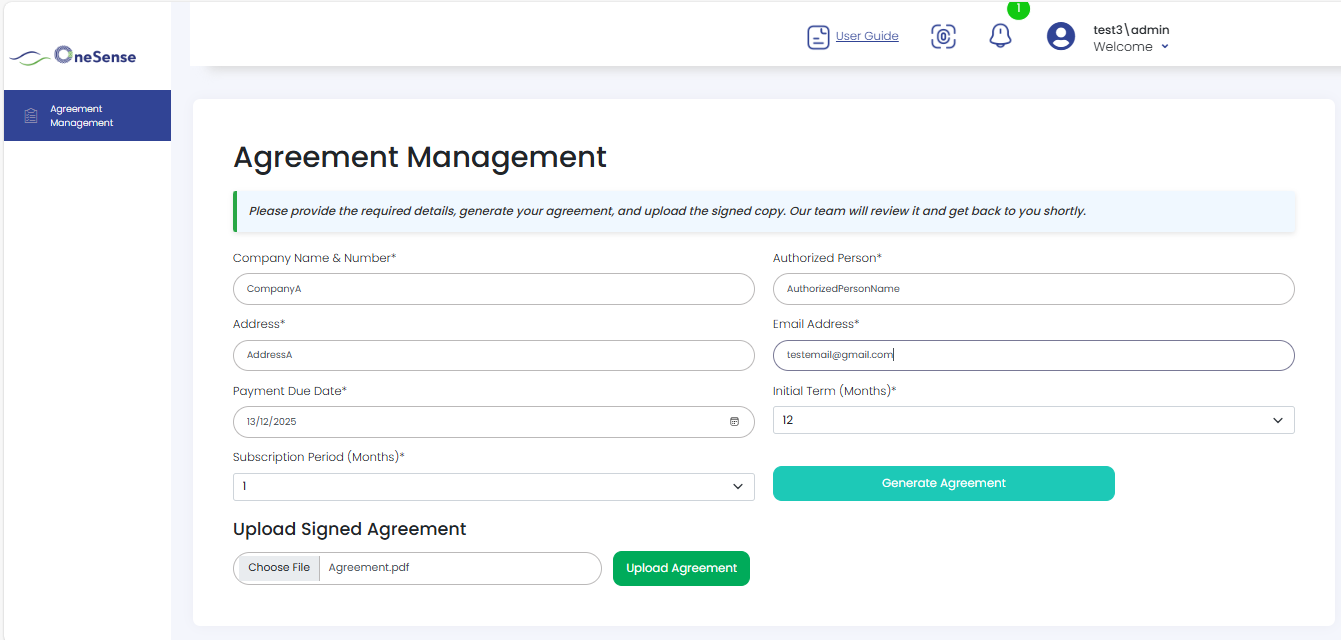
In the same Agreement Management page, click "Choose File" to select your signed agreement.
Click "Upload Agreement" to submit the signed document.
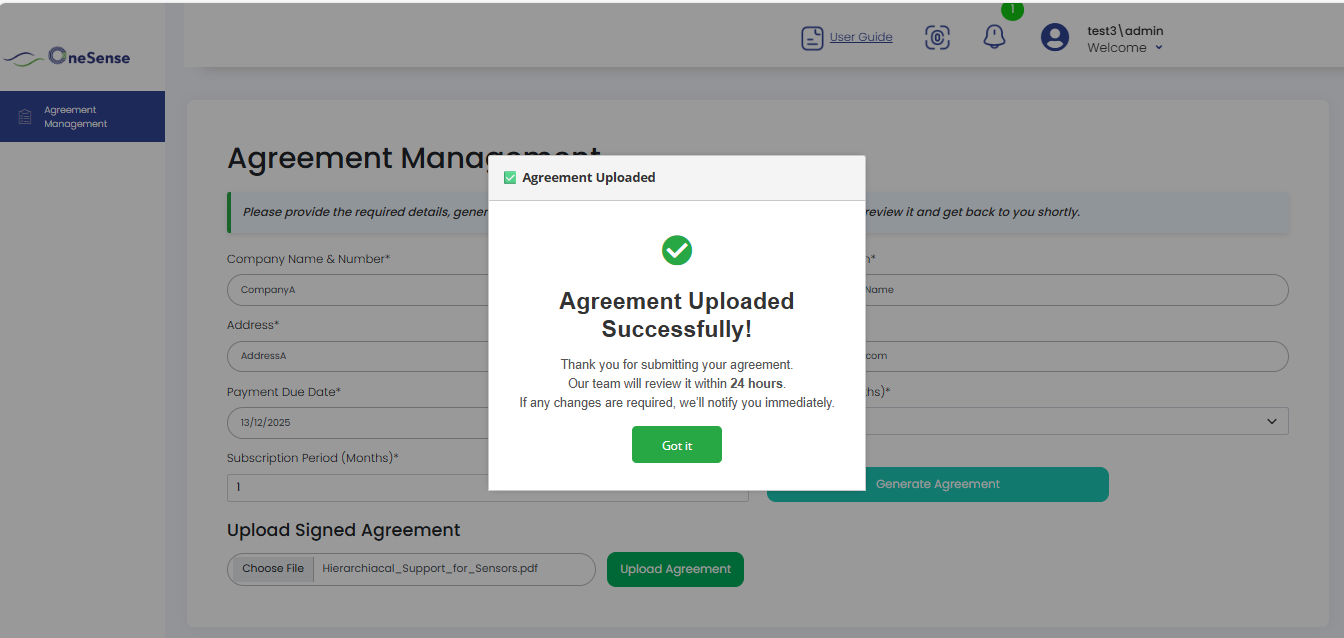
A success notification popup will appear confirming the upload.
Click "Got it" to close the notification.
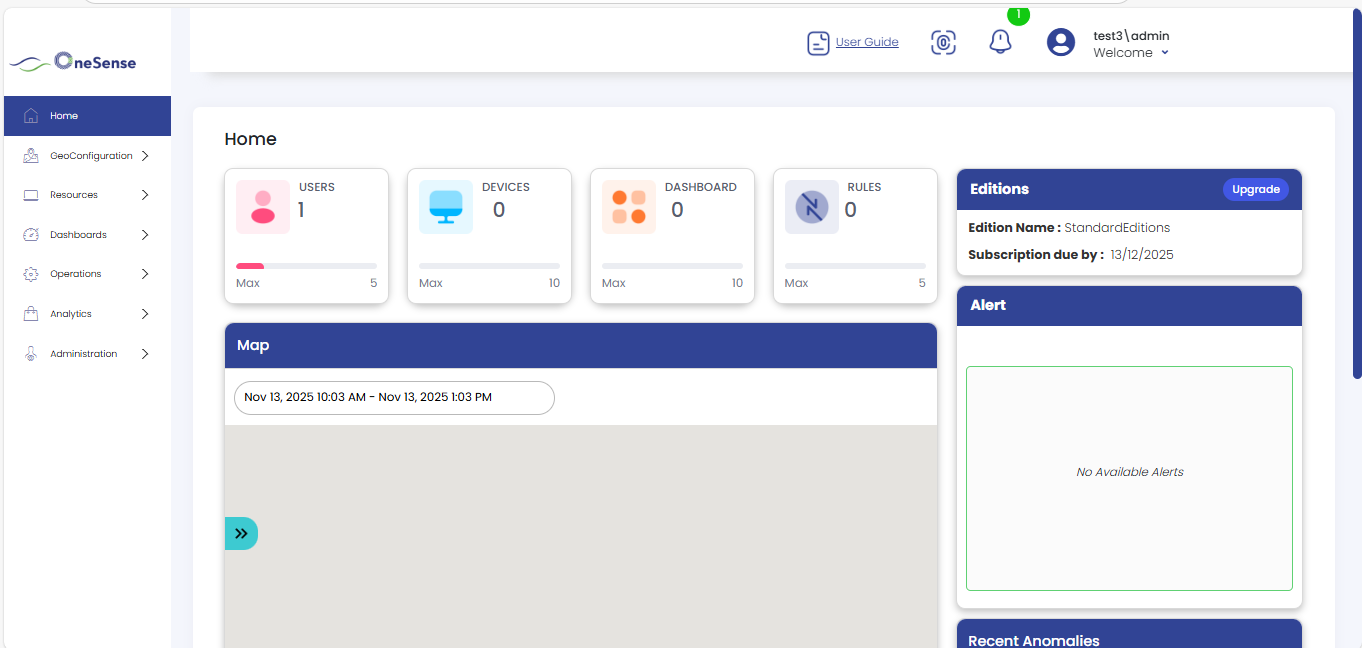
After uploading the agreement, login again with your credentials in the Tenant section.
You will now have full access to the OneSense platform with all features available.
The global admin will review the uploaded Agreement document and may request changes if any modifications are required.